Please scroll down for the Chinese version.
中文版載於英文版之後。
Dear Staff and Students,
ITSC has enhanced email security. You will receive a quarantine report when a suspicious email is detected.
To release your email from quarantine, you may do the following:
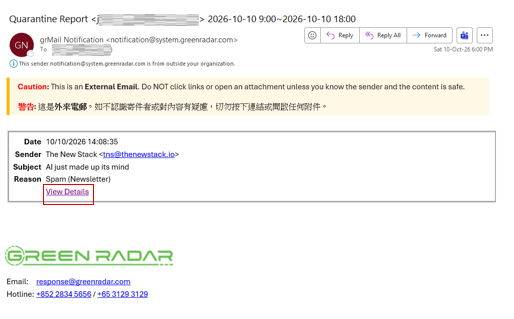
1. Access Quarantined Email: An email from Green Radar (grMail Notification “notification@system.generadar.com“) will notify you when your email is quarantined. You may click on “View Details” to review.
2. Review Quarantined Emails: You may find the details of the email. Like the sender, subject and the content itself. Please make sure you have review the details before releasing the email.
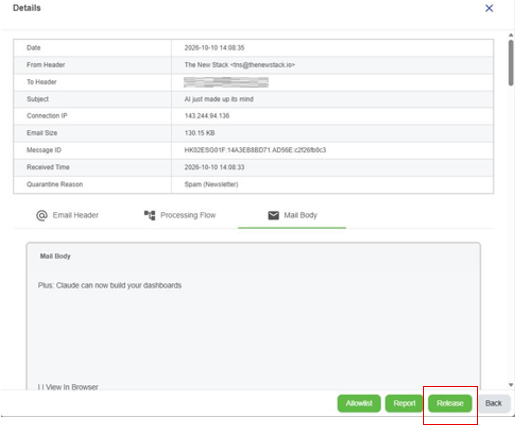
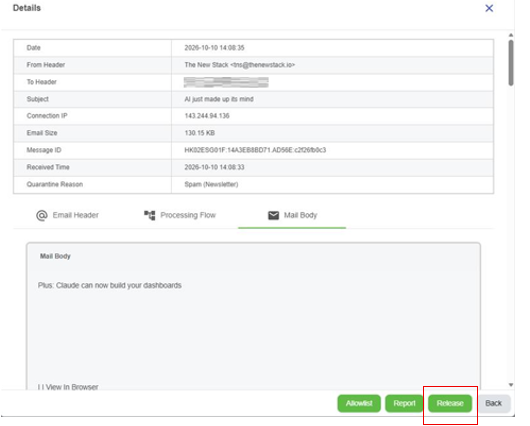
3. Release Email: After reviewing the email, if you find it is legitimate, you may click on “Release” button to restore the email. For email cannot released, please proceed to step 5.
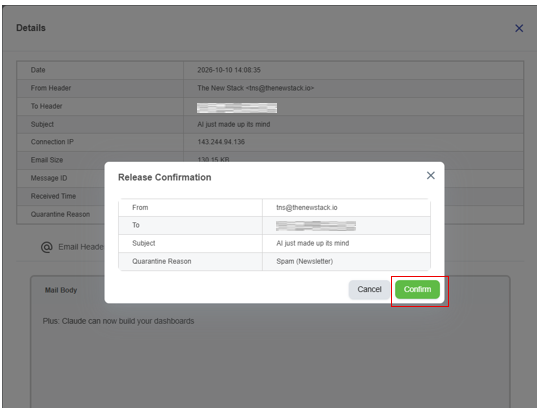
4. Confirmation: A confirmation message will appear. Click the “Confirm” button to release the email.
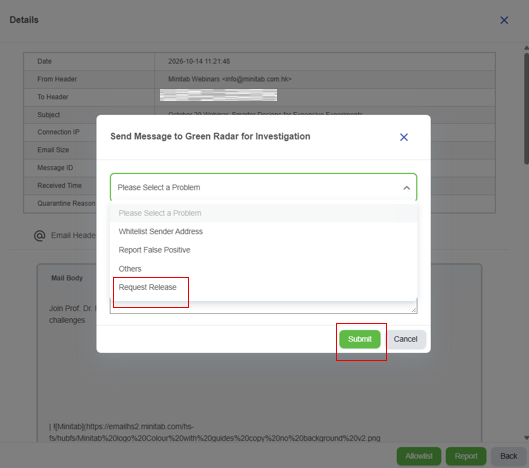
5. Email Cannot be Released: You may find that some quarantined email cannot be released (Without “Release” button), these may considered high risk by Green Radar, but if you think is safe and legitimate, then you have to click the “Report” button to request further review by Green Radar administrator.
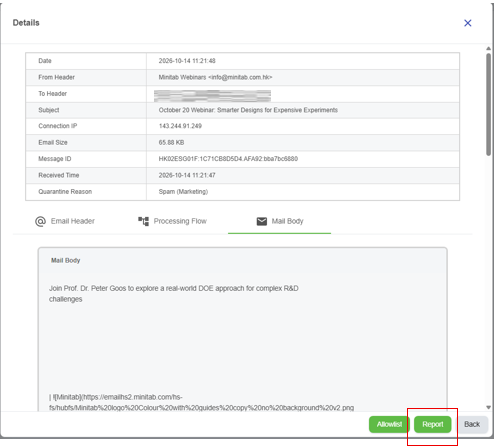
6. Request Release: After clicking the “Report” button, a message box will appear. Please select “Request Release” or “Others” options on the list and type your justifications or the false claims you suspect of Green Radar administrator to further review. Click button to submit the request.
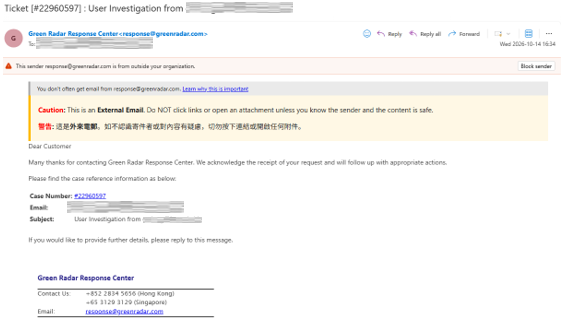
7. Acknowledge Email: An email will reply to you by Green Radar response@greenradar.com that they received your request and will follow up accordingly.
Remarks: This is an additional security measure and does not replace Microsoft 365 security. Therefore, an email may be quarantined by either or both security systems.
If you have any enquiry on this, please contact us at itsc@hsu.edu.hk
(中文版本如下)
各位同事、同學:
資訊科技服務中心(ITSC)已加強電子郵件安全防護。當系統偵測到可疑郵件時,你將收到隔離報告。
如需從隔離區釋放郵件,請按照以下步驟操作:
1. 存取被隔離的郵件:當你的郵件被隔離時,你將收到由 Green Radar (grMail Notification “notification@system.generadar.com“)發出的通知郵件。你可以按一下「View Details(查看詳情)」以檢視郵件內容。
2. 檢查被隔離的郵件:你可以查看郵件的詳細資料,例如寄件者、郵件主旨及郵件內容。釋放郵件前,請務必仔細檢查相關資料。
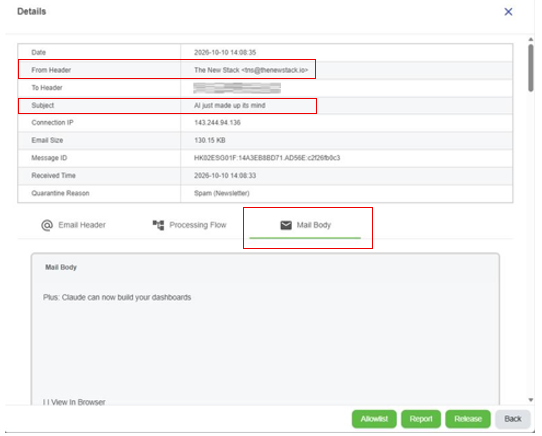
3. 釋放郵件:完成檢查後,如確認郵件屬合法及可信郵件,你可以按一下「Release(釋放)」按鈕以還原郵件。對於不能被釋放的電子郵件,請直接前往步驟 5。
4. 確認:系統將顯示確認訊息。請按一下「Confirm(確認)」按鈕以釋放郵件。
5. 不能被釋放的電子郵件:你可能會發現部分被隔離(Quarantined)的電子郵件並不能釋放(沒有「Release」按鈕)。這些電子郵件可能被 Green Radar 判定為高風險郵件。然而,若你確認該郵件安全且合法,你可按一下「Report」按鈕,向 Green Radar 管理員提交進一步審核申請。
6. 要求釋放郵件:按一下「Report」按鈕後,系統會顯示一個訊息視窗。請在選項清單中選擇 「Request Release」或「Others」,然後輸入你要求釋放該郵件的理由,或說明你認為 Green Radar 誤判郵件的原因,以便 Green Radar 管理員作進一步審核。完成後,按一下 「Submit」 按鈕提交申請。
7. 確認通知電郵:提交申請後,你將收到由 Green Radar(response@greenradar.com)發出的確認電郵,通知你他們已收到你的申請,並會按既定程序作出跟進。
備註事項: 這是一項額外的安全防護措施,並不會取代 Microsoft 365 的電子郵件安全機制。因此,電子郵件可能會被其中一個系統,或同時被兩個安全系統隔離。
如有任何查詢,請電郵至 itsc@hsu.edu.hk。
Best Regards,