Account & Access Services
What is an HSUHK Account, and what services can I access with it?
- Your HSUHK account is your single digital identity at the university. It grants you unified access to all essential on-campus and remote IT services
Service Category Accessible Systems Core Systems eCampus (the university portal) , campus computer login, and HSUHK-WIFI . Communication & Collaboration Microsoft 365 (M365) services, including your university Outlook Email and OneDrive storage. Remote Services Secure off-campus access to licensed university resources via SSLVPN
When does my HSUHK account expire?
Your account validity is determined by your current status with the university:
User Role Account Expiry Policy Staff Your account will expire automatically on your official date of departure. Student Your account expires on December 31st of your graduation year, or immediately if you no longer maintain proper student status
What are the password complexity requirements when I change my password?
- Your password must have 12 characters or more.
- You cannot use your previous passwords.
- You are NOT allowed to use your username or any part of your name as password.
- The password must contain characters from 3 of the follow categories:
- Uppercase letters (A to Z)
- Lowercase letters (a to z)
- Numbers (0 to 9)
- Special characters (e.g. !, $, #, %)
How can I change or reset my HSUHK password?
- For User Account
- Users can reset their own passwords.
- Please note, in order to use the reset password function, you have to activate your M365 2FA first. For details on how to activate, click here.
- User Guide: Reset Password – Personal Account
- For Functional Account
- Only the owner and the administrator of the account can reset the password.
I just changed my password, but now my phone won't connect to the campus WiFi. Why?
When you change your password, your mobile devices (phones, tablets, laptops) might still be trying to connect to the “HSUHK-WIFI” network using your old, saved password, which causes the authentication to fail.
To fix this, simply “Forget” the WiFi network in your device settings, and reconnect by entering your username and your new password.
How do I set up the Microsoft Authenticator
Please refer to the user guide
What should I do if I buy a new smartphone or change my phone number?
Before you dispose of your old phone or change your number, you must update your 2FA settings:
-
Log in to your Microsoft Security Info page using your old device to authenticate.
-
Register your new device or new phone number.
-
Delete the old device from your account.
(Note: If you have already lost your old phone or traded it in without updating your settings, you must contact the ITSC Helpdesk in person to have your 2FA reset.)
Applications & Systems
How do I log in to eCampus?
Open https://ecampus.hsu.edu.hk in your browser.
You may log in to eCampus using one of the following methods:- Click the “Sign in with Microsoft” button and sign in with your HSUHK Microsoft 365 account.
- Enter your HSUHK username and password, then click the “Login” button.
What should I do if the "Sign in with Microsoft" button doesn't work?
If you experience issues with Microsoft SSO, you can use your HSUHK M365 account as an alternative.
For security purposes, an authentication email will be sent to your HSUHK Outlook mailbox for verification.
Where can I download the HSUHK Mobile App?
The app is available for iOS and Android devices. To download it, search for “HSUHK” in the Apple App Store or Google Play Store.
Who can use the Mobile Printing service?
All current HSUHK students and staff with a valid university account and sufficient print quota can use the service.
Which devices are supported?
The service supports most modern devices, including Windows and macOS laptops, as well as iOS (iPhone/iPad) and Android smartphones and tablets.
Do I need to install any software or apps?
No installation is required! You do not need to download any software, drivers, or applications to use this service.
How do I print from my mobile device?
Connect to the campus WiFi network and log in to the HSUHK Mobile Printing portal at mprint.hsu.edu.hk to upload and submit your print jobs.
What file formats are supported for mobile printing?
Most common file formats are supported for upload, including Microsoft Word, Excel, PowerPoint, PDF, and image files (PNG, JPEG, JPG, TIF, TIFF, and BMP).
IT Facilities & Learning Spaces
Does the classroom PC support hybrid teaching or Zoom/Teams sessions?
Yes, Zoom and Microsoft Teams are pre-installed on all classroom PCs. In addition, all classrooms are equipped with USB cameras and microphones to support hybrid teaching.
How do I log in to the classroom PC?
You can log in using your HSUHK credentials, the same username and password used for eCampus and Moodle.
Can I save my work directly on the laboratory computer?
No. Public computers undergo automatic housekeeping and profile resets regularly.
You should never leave your files on the local drive.
Can I install my own software on a laboratory computer?
No. To maintain system security and stability, users are strictly prohibited from installing external software, browser extensions, or modifying system configurations on Lab computers
Can I connect my personal laptop to the lab’s monitors or network cables?
No. Users must not unplug or alter any network or power cables connected to lab workstations.
If you wish to use your own device, please connect to the HSUHK-WIFI network.
IT Support & Digital Services
Who can request Event IT/AV support?
All HSUHK academic departments, administrative offices, and registered student organizations are eligible to request this service.
Can I install Microsoft Office apps on my personal devices?
Yes. As an eligible HSUHK user, you can download and install the latest desktop and mobile versions of Microsoft Office applications
How much storage space do I get on OneDrive?
Each eligible HSUHK user is allocated 500 GB of secure cloud storage space on OneDrive for Business to store university-related documents and files
What is my HSUHK email mailbox storage limit?
Your university Outlook mailbox has a maximum storage limit of 100 GB
Can I share OneDrive files with people outside of HSUHK?
Yes, you can share files from OneDrive.
However, external sharing settings are subject to university IT security policies. For highly sensitive data, it is recommended to restrict sharing to internal HSUHK users.
What happens to my M365 account and data after I graduate or leave HSUHK?
Upon graduation or termination of your employment, your university M365 account and all associated data (including OneDrive files and emails) will be deactivated.
You must back up and download all your personal data before your last official day.
Network & Connectivity
Cannot connect HSUHK-WIFI
- Ensure the location has Wi-Fi coverage
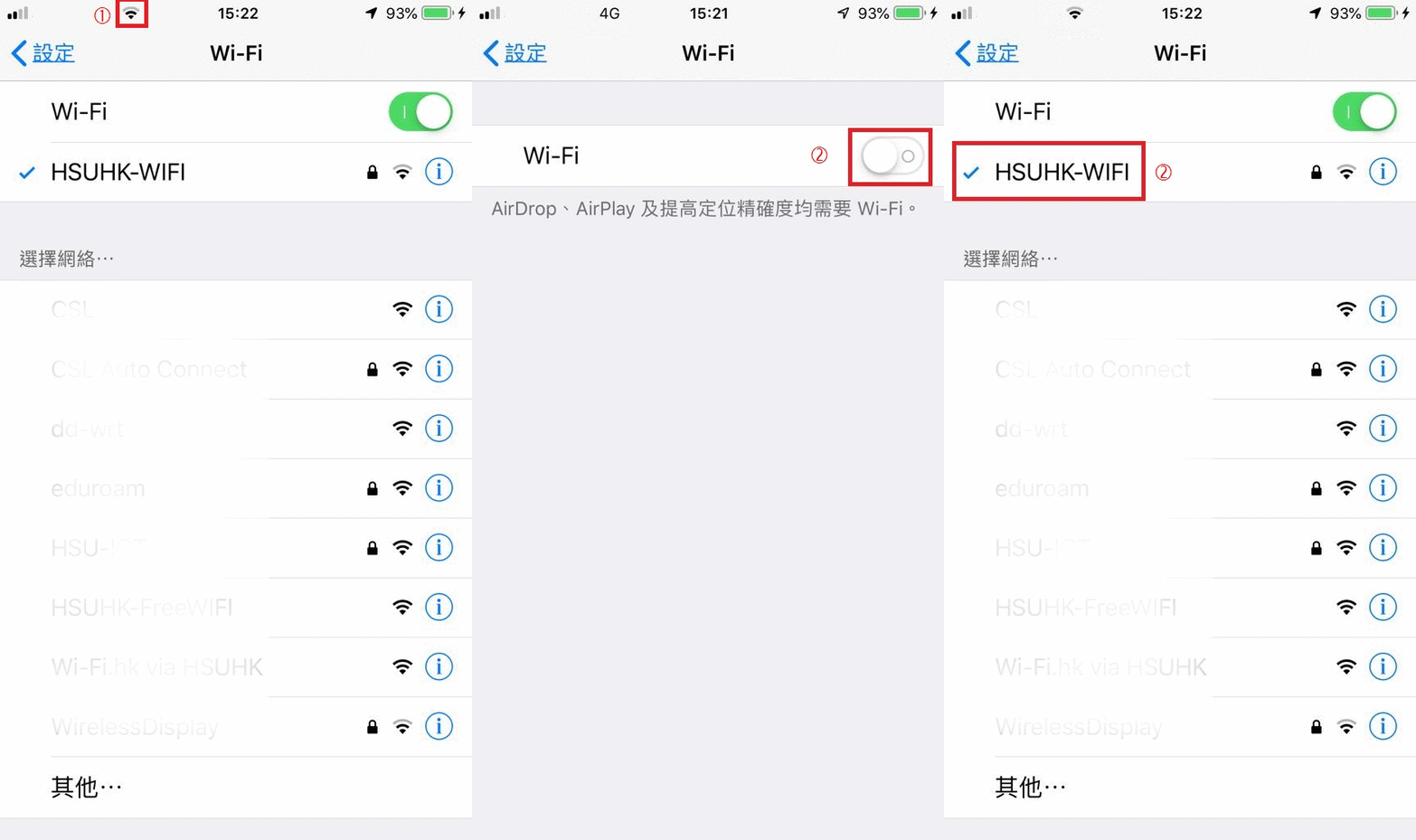
- Check if your device Wi-Fi connection has been enabled
- Disable and re-enable your device Wi-Fi connection
- Restart your device
- Forget or reset HSUHK-WIFI network in your device and input your login ID and password
- Check if your password has been changed in HSUHK computers
- Mark the time and location, then report to ITSC
Why is a specific website being blocked?
- The website is regarded as a suspicious website
- Contact ITSC, if you consider it as a false protection
Why is a website continuously loading without displaying any content?
- Ensure you have a strong and stable Wi-Fi signal.
- If not, disable and re-enable your device Wi-Fi connection or move to other location
- Restart your browser
- Report to ITSC with connected SSID, location, time and the URL
Why is the website responding slowly or failing to load images correctly?
- Ensure you have a strong and stable Wi-Fi signal.
- Check if you are connecting to HSUHK-WIFI
- If the website is still loading, please wait for loading complete
- Reload the website again
- Try to access other website to compare the loading speed
- If other website loading speed is normal, then it should be server side problem
- Otherwise, restart your browser, device Wi-Fi connection or move to other location
- Report to ITSC with connected SSID, location and time.
Why does my WiFi connection suddenly disconnect ?
- Ensure you have a strong and stable Wi-Fi signal.
- Check if your device has network sleeping mode
- Disable and re-enable your device WiFi connection
- Restart your device
- Report to ITSC with connected SSID, location and time.
Who is eligible to use the SSLVPN service
All active HSUHK staff and students who need to access internal campus-only IT services and resources from off-campus are eligible to use this service
When do I need to use the SSLVPN?
You only need to use the SSLVPN when you are off-campus and need to access internal resources that are restricted to the campus network. You do not need it when connected to campus WiFi
What should I do if I get a "Credential Authorization Failed" error?
Please ensure that you are using your HSUHK credentials and entering the correct password. If you have recently changed your password, please remember to update it in FortiClient as well.
Teaching & Learning Technologies
How do I log in to the HSUHK Moodle platform?
- Open https://moodle.hsu.edu.hk in your browser.
You may log in to Moodle using one of the following methods:- Click the “Sign in with Microsoft” button and sign in with your HSUHK Microsoft 365 account.
- Enter your HSUHK username and password, then click the “Login” button.
Why can't I see my registered courses on Moodle?
Courses are typically released near the semester start date.
If the semester has already started, please allow some time for your enrollment data to sync.
How do I submit my assignment?
- Navigate to your course and open the assignment page.
- Click the “Add submission” button and upload the required file(s).
- Once the upload is complete, click the “Submit” button to finalize your submission, if enabled.
How do I take an online quiz or exam in Moodle?
- Navigate to your course and open the quiz page.
- Click the “Attempt quiz” button and answer the questions.
- Before the time limit expires, click the “Submit all and finish” button to finalize your attempt.
Why did my Moodle session time out?
For security reasons, Moodle will automatically log you out after a period of inactivity.
Who should I contact if I experience technical issues with Moodle?
If you face login issues, error messages, or system glitches, please capture a screenshot and contact the ITSC Helpdesk with your student/staff ID, the course code, and a description of the problem.
What is Turnitin and how is it used at HSUHK?
Turnitin is a plagiarism detection service that examines documents for duplicated content and supports academic integrity by providing detailed similarity reports and writing feedback. Additionally, Turnitin can identify if the text has been generated by AI.
How do students submit assignments through Turnitin?
Students do not need to log into a separate Turnitin website. Instead, they simply submit their assignments directly to the designated Moodle Assignment activity created by their instructor.
Turnitin will automatically scan the submission in the background, provided that the teacher has enabled the Turnitin plugin for that specific Moodle assignment.
Can students check their own Turnitin Similarity Report?
Yes, but only if the instructor has enabled the “Allow students to view Similarity Reports” option in the Moodle assignment’s Turnitin settings. If enabled, students can see their report directly inside Moodle.
What is VeriGuide and how does it support academic integrity?
VeriGuide is an online text-similarity detection system used at HSUHK to check the originality of student assignments. It scans and compares submitted files against student databases, academic journals, and internet resources.
How do students submit assignments through VeriGuide?
Depending on the instructor’s setup, students will either submit their file directly through the designated Moodle assignment or log in to the external VeriGuide Portal.
Before uploading an assignment, students must confirm with their instructor which platform (Moodle or the VeriGuide Portal) to use, as submitting to the wrong platform may cause submission issues.
Can students view their own VeriGuide Originality Reports?
This depends on both the platform used and the instructor’s settings:
- For Moodle submissions: Students can only view their report if the instructor has enabled the option to share reports on that specific Moodle assignment.
- For VeriGuide Portal submissions: Students can log in to the VeriGuide Portal directly to view and download their Originality Reports, provided their account has been granted access.
For further assistance, please contact ITSC.